Formatting messages
Don't have your own Matrix instance yet? You'll find the right hosting with us.
On this page, we show you how to format messages in Matrix, send files, and use other useful features. We use our recommended Matrix client, Element, as an example. For further questions about using Element, see the official Element user guide. Is something missing? Let us know.
Sending messages
You can send messages by pressing the Enter key. To insert a line break, press Shift + Enter.
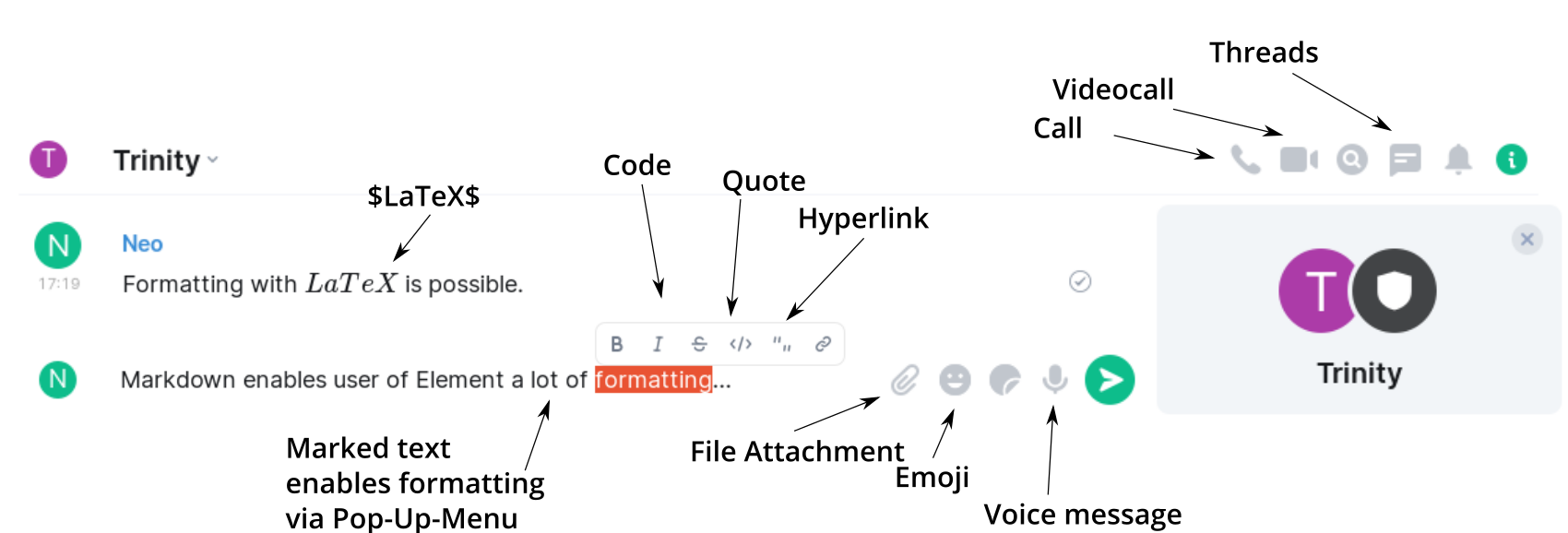
You can find additional options in the options menu - the three dots next to the Send button.
Sending files and images
Files and images can be sent up to a certain size. The maximum size depends on the plan you have booked or on your homeserver's configuration. To attach documents, select the paperclip icon. You can view all files within a room via the sidebar with the document icon.
If you regularly share larger files, we recommend Nextcloud instead.
Formatting text with Markdown
In Element, messages can be formatted with Markdown - a simple markup language that is also used in many other tools. Here are a few examples:
| Result | Input |
|---|---|
| Bold | **Bold** |
| Italic | _Italic_ |
| | Quote | > Quote |
| Heading 1 | # Heading 1 |
| Heading 2 | ## Heading 2 |
| Matrix Help | [Matrix Help](https://docs.ossrox.org/matrix/) |
| List entries | * List entry* List entry* List entry |
| Numbered lists | 1. Numbered list 2. Numbered list3. Numbered list |
The complete Markdown specification can be found at commonmark.org.
LaTeX formulas are supported as a Labs feature. The other party sees them rendered if they have also enabled the display of LaTeX formulas in their Labs settings.
Emojis and hashtags
Emojis are suggested as soon as you type a colon ":" and at least two more letters. If you don't know the name of an emoji, you can scroll through all available emojis using the smiley icon on the right side of the input line.

Hashtags can be used to make terms easier to find via search.
Navigating the message history
If there are more unread messages than fit on the screen, two navigation buttons on the right-hand side will help you:
- Up arrow (with dot): Jumps to the oldest unread message.

- Down arrow (in a circle): Jumps to the newest message in the room.

Threads - topic-based conversations
Threads allow you to reply to a specific message without interrupting the main flow of the room. This keeps related messages neatly bundled together - similar to comments under a post.
Slash commands
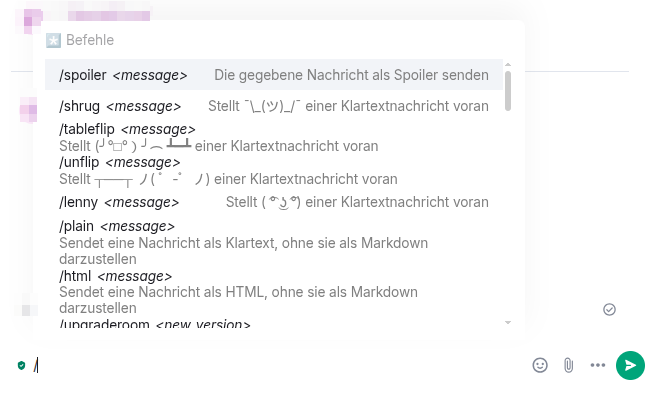
If you type a "/" at the beginning of a message, various commands will be displayed. These offer shortcuts for common actions and are listed with a brief explanation.
Next steps
- Using the Element Matrix client: Back to the overview of the Element basics.
- Frequently asked questions (FAQ): Answers to common questions, e.g., about key backup or browser compatibility.
- Bridges - connecting other messengers: Connect Matrix with WhatsApp, Telegram, Signal or Discord.
Parts of the text and images are based on the Matrix documentation from TU Dresden, licensed under CC BY-SA 4.0. The content has been adapted to our style and partially expanded. This page of our wiki is therefore also licensed under CC BY-SA 4.0.