Using the Matrix Client Element
Don't have your own Matrix instance yet? Feel free to book [your hosting with us].(https://ossrox.org/store/matrix)!
Matrix is an open, decentralized messenger — with similar usage like WhatsApp or Signal, but independent of any single provider. In this guide, we'll walk you through the basics of how to use it. Some things will probably already be familiar to you from other messengers.
Further down this page, you will find the basics: connecting, joining rooms, and responding to messages. You can find everything you need to know about formatting messages in our guide to message formatting.
The Matrix Client
We recommend the Matrix client Element (Web, Desktop/Mobile) or the newer version Element X (Mobile). In the following, we refer to this client in terms of functionality and operation, but there is also a selection of other Matrix clients.
Using the Element Matrix Client
The Element interface is clearly laid out and reminiscent of well-known messengers such as WhatsApp Web, Discord, or Slack. If you understandably still have a lot of questions when you first connect, you will probably find answers to your questions in the official user guide.
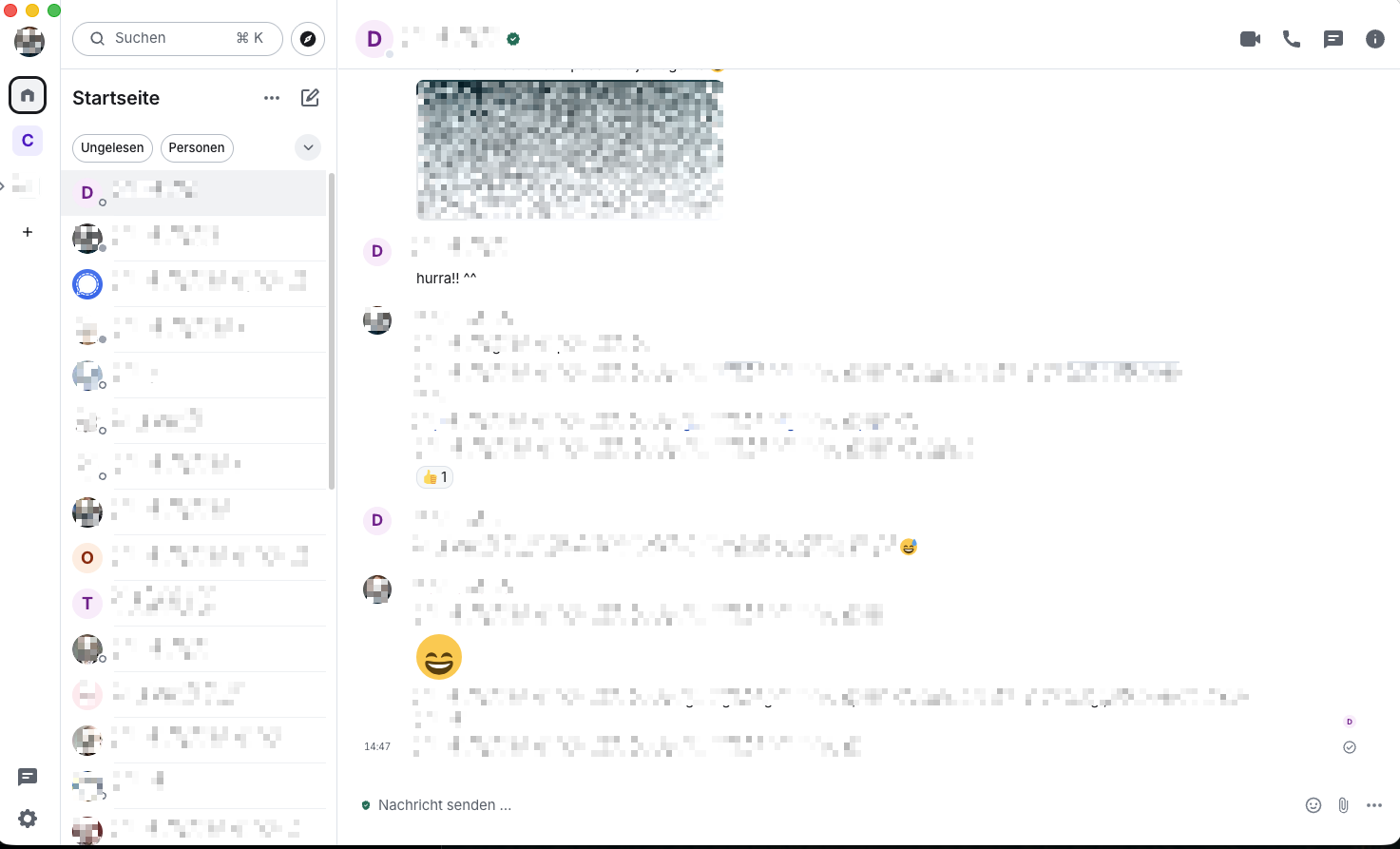
The window is divided into several areas:
- Left sidebar: Here you will find your rooms (chats) and spaces (groups of rooms). You can use the search function at the top to search for rooms, people, or messages.
- Message history (center): The central area shows you the history of the currently open room. At the top, you can see the room name and options such as search or access to audio/video calls.
- Input field (bottom): This is where you write your messages. You can also send files, images, and voice messages.
- Right sidebar (optional): The person icon in the top right corner allows you to display a list of all room members. You will also find the room settings here.
Connecting to your Matrix instance
To connect to your Matrix instance, you must first select the home server (the name of your Matrix server) after opening Element. Assuming your Matrix instance is located on the domain matrix.example.com, simply enter this in the corresponding field.
Joining rooms – publicly, by invitation, or by room address
There are several ways to join a room:
- Browse public rooms: Every Matrix server offers a navigation area for public rooms. You can find it in the left sidebar, provided that public rooms are available.
- Enter room address: If you know the address of a room (e.g.,
#general:example.com), you can enter it using the search function or the “Join room” dialog. - By invitation: Other users can invite you directly to a room. The invitation will then appear in your room list.
Replies / Reactions
Replies and reactions to messages can be made directly via the interface, e.g. from Element. To do this, use one of the reaction icons that appear when you move the mouse pointer over the message.
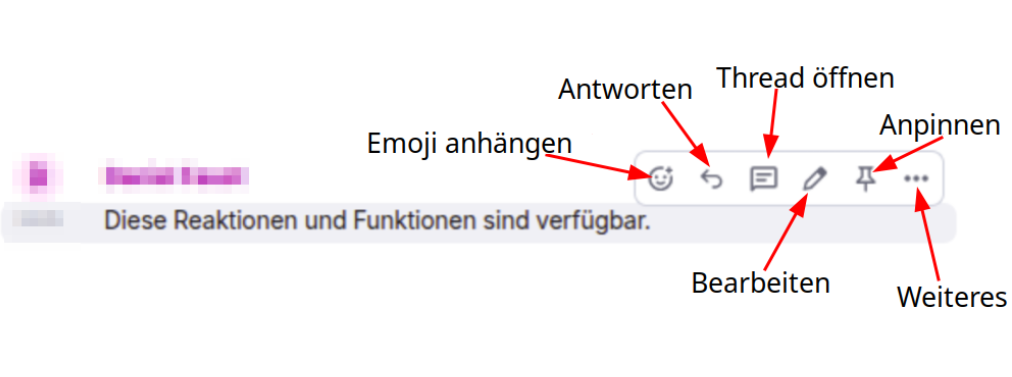
Here you can:
- React with an emoji
- Reply
- Create a thread (your own conversation within the message)
- Pin the message
- Edit the message
- Delete the message
- And view more information
The “Edit” option is only available for your own messages.
Next steps
You now know the basics of how to use the system. Here are some more advanced topics:
- Formatting messages: Format messages with Markdown and use emojis.
- Frequently asked questions (FAQ): Answers to common questions, e.g., about key backup or browser compatibility.
- Bridges – connecting other messengers: Connect Matrix with WhatsApp, Telegram, Signal, or Discord.
Parts of the text and images are based on the Matrix documentation from TU Dresden, licensed under CC BY-SA 4.0. The content has been adapted to our style and partially expanded. This page of our wiki is therefore also licensed under CC BY-SA 4.0.